Full Design Control for Every Slide
A Canva-like editor for carousels and infographics - 20+ templates, drawing mode, patterns, shapes, image search, and voice-to-text. Full design control without leaving FeedBoss.
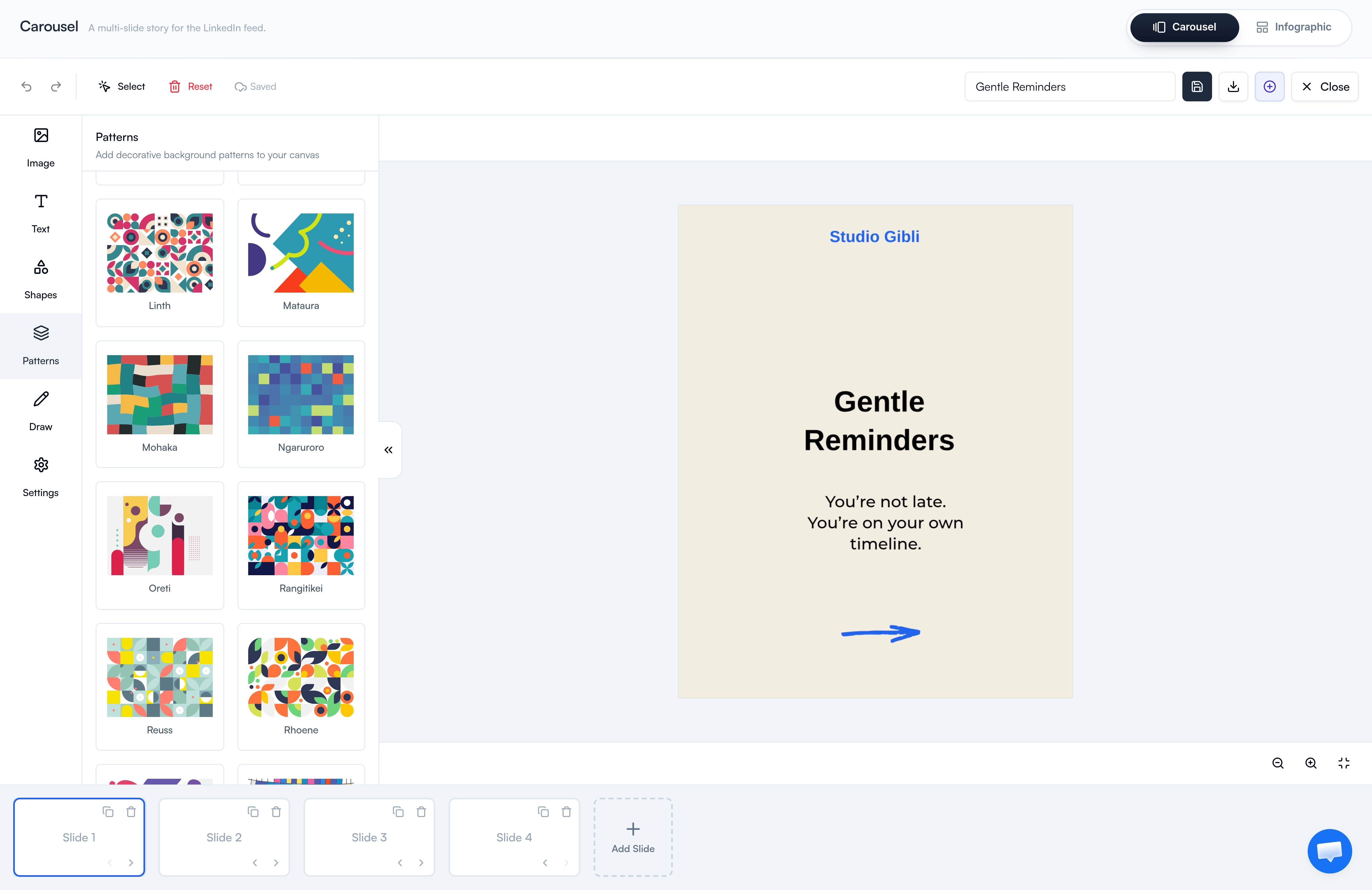
Pixel-Perfect Design, Built In
The Canvas Editor gives you nearly everything Canva offers - templates, shapes, patterns, drawing, image search - plus voice-to-text for fast caption entry. Design carousels and infographics from scratch or pick up where AI left off. Pair it with the Image Studio when you want AI to do the heavy lifting, or schedule the finished work through the Content Calendar.
Everything in the Editor
20+ Ready-Made Templates
Start from a curated template and customize - no need to design from scratch or stare at a blank canvas.
Full Canvas Control
Adjust canvas height, width, and background. Build square LinkedIn carousels, vertical infographics, or any custom dimension.
Drawing Mode
Freehand drawing for annotations, sketches, arrows, and personality - built directly into the canvas.
10+ Background Patterns
Drop in geometric, dotted, mosaic, or gradient patterns to make slides visually striking without sourcing external assets.
Shapes & Text Tools
Full library of shapes, text styles, alignment, and layering controls - everything you expect from a modern design tool.
Built-in Image Search
Search and drop external images straight onto the canvas without leaving the editor or downloading anything.
Voice-to-Text
Skip the typing. Speak your text and the editor extracts and adds it to the canvas - useful for long captions and slide copy.
Carousel & Infographic Modes
Toggle between multi-slide carousel mode and single-canvas infographic mode in the same editor.
Slide Management
Add, duplicate, reorder, and delete slides with thumbnail navigation at the bottom of the editor.
How It Works
Pick a Template or Start Blank
Choose from 20+ templates or open a blank canvas in carousel or infographic mode.
Design Your Slide
Add text, shapes, patterns, drawings, and images. Use voice-to-text for fast caption entry.
Build the Full Story
Duplicate slides, reorder them, and refine the flow - the bottom thumbnail bar makes navigation effortless.
Export & Publish
Export as PDF for LinkedIn document posts, or save your project to keep editing later.
Who It's For
Built for LinkedIn creators at every level
Designers Who Want Full Control
Skip AI generation when you have a specific layout in mind. The Canvas Editor gives you Canva-like power for carousels and infographics - without leaving FeedBoss.
Brand-Conscious Creators
Maintain pixel-perfect brand consistency. Set canvas dimensions, drop in your patterns, lock typography choices, and reuse the result across posts.
Anyone Who Hates Typing Long Captions
Voice-to-text lets you dictate slide copy instead of typing it out. The editor extracts your speech and places it on the canvas automatically.
Frequently Asked Questions
How is the Canvas Editor different from Image Studio?
Can I edit AI-generated carousels in the Canvas Editor?
What is voice-to-text useful for?
Can I search for stock images directly in the editor?
How do I publish a finished carousel to LinkedIn?
Does the Canvas Editor support LinkedIn aspect ratios?
Related Features
Explore more tools in the FeedBoss platform
AI Post Generator
Generate publish-ready LinkedIn posts in single or batch mode with AI that learns your voice.
Learn more →Image Studio
Generate images, infographics, and carousels from a single prompt with dozens of templates, style references, and AI editing.
Learn more →Content Calendar
Plan and schedule posts weeks in advance, or auto-generate a full month of content in seconds.
Learn more →Lead Magnets
Create checklists, swipe files, templates, and frameworks to grow your email list and authority.
Learn more →
Ready to own your LinkedIn
in 3 simple steps?
Pick your voice
Set your tone, topics, and style. FeedBoss learns how you write so every post sounds like you.
Generate & customize
Get AI-drafted posts, carousels, and hooks in seconds. Edit or publish as-is.
Post & grow
Schedule content, track what works, and watch your audience grow week over week.